How do you show what is selected when its box does not fit the screen?
An infinite canvas makes ordinary selection outlines surprisingly difficult. These visual studies compare ways to keep a selected object recognizable when it is tiny, thin, partly visible or larger than the viewport.
The interaction problem
In bound.less, a selected object can be much smaller than a pixel or so large that every corner is off screen. A thick highlight may hide a tiny mark, while a bounding box outside the viewport tells you almost nothing. The old dashed selection box also caused a real stall at deep zoom, because the app redrew a box far larger than the screen on every frame.
I wanted to compare ways of saying “this is selected” without assuming the object fits neatly inside the screen.
What I built
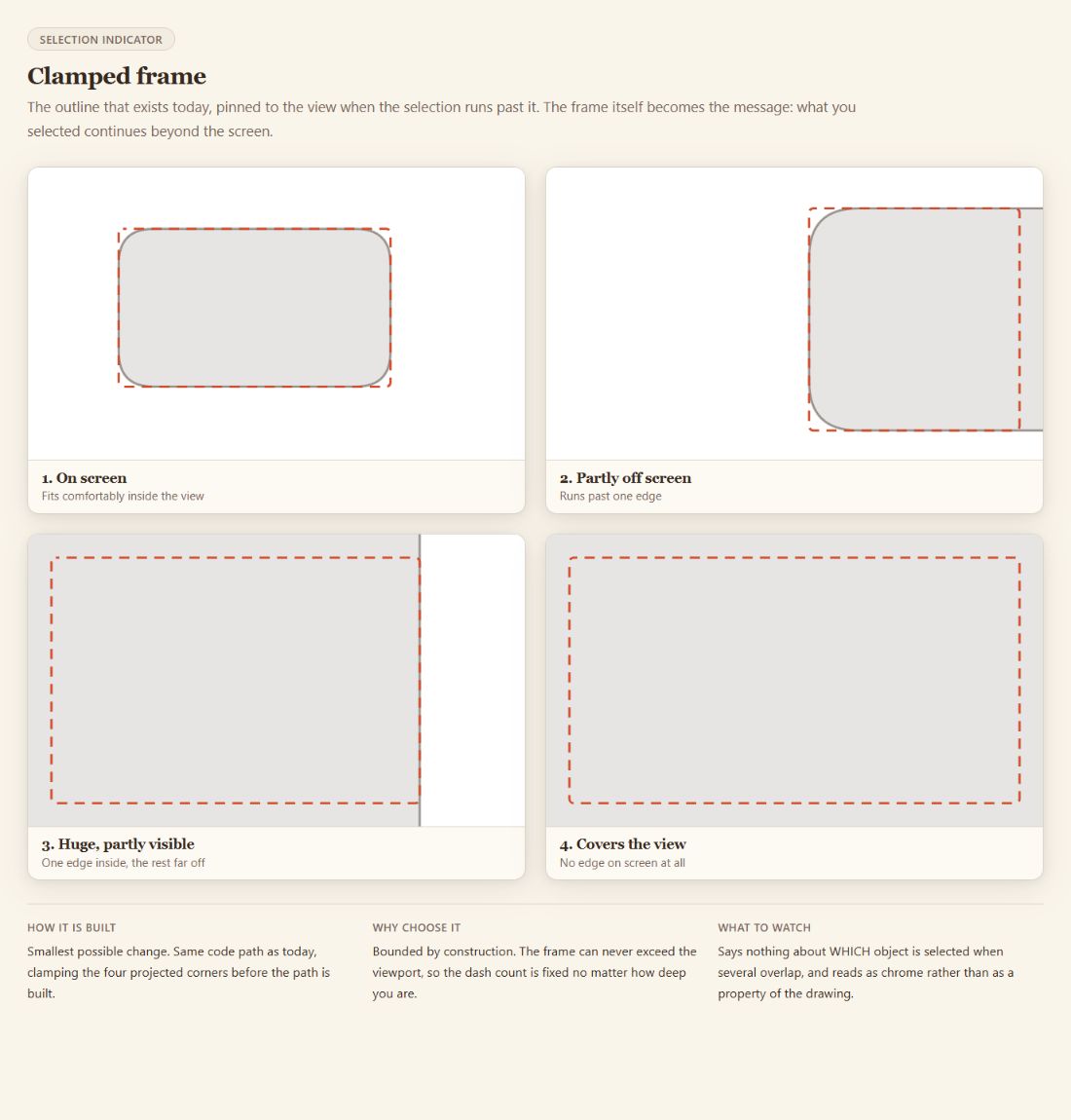
The lab applies five feedback approaches to shared scenes: marching ants, a clamped frame, corner ticks, object shimmer and tint with edge marks. A stripped-down page isolates the ant geometry from the rest of the interface.
Using the same scenes makes the tradeoffs visible: how much of the selection is indicated, how much of the drawing is obscured, and what motion or contrast adds.
Try comparing the difficult cases
Open the scene overview and compare the indicators for an oversized object, a thin shape and a tiny mark. Pay attention to what still tells you where the selected object is when its outline or corners are outside the viewport.
My contribution and what I chose
I turned an infinite-canvas constraint into concrete interaction alternatives and used AI to accelerate prototyping and visual review. These are animated design studies.
After trying them in the app, I chose marching ants along the object’s own edge. When an object runs off screen, the ants follow the screen edge instead, with a small arrow pointing to where the object continues. The shimmer looked promising in the studies, but I didn’t like it in use, so I dropped it. The studies weren’t user-tested for accessibility.